




Faster & More Reliable: MeiboVue USB Cable Data Sync Guide
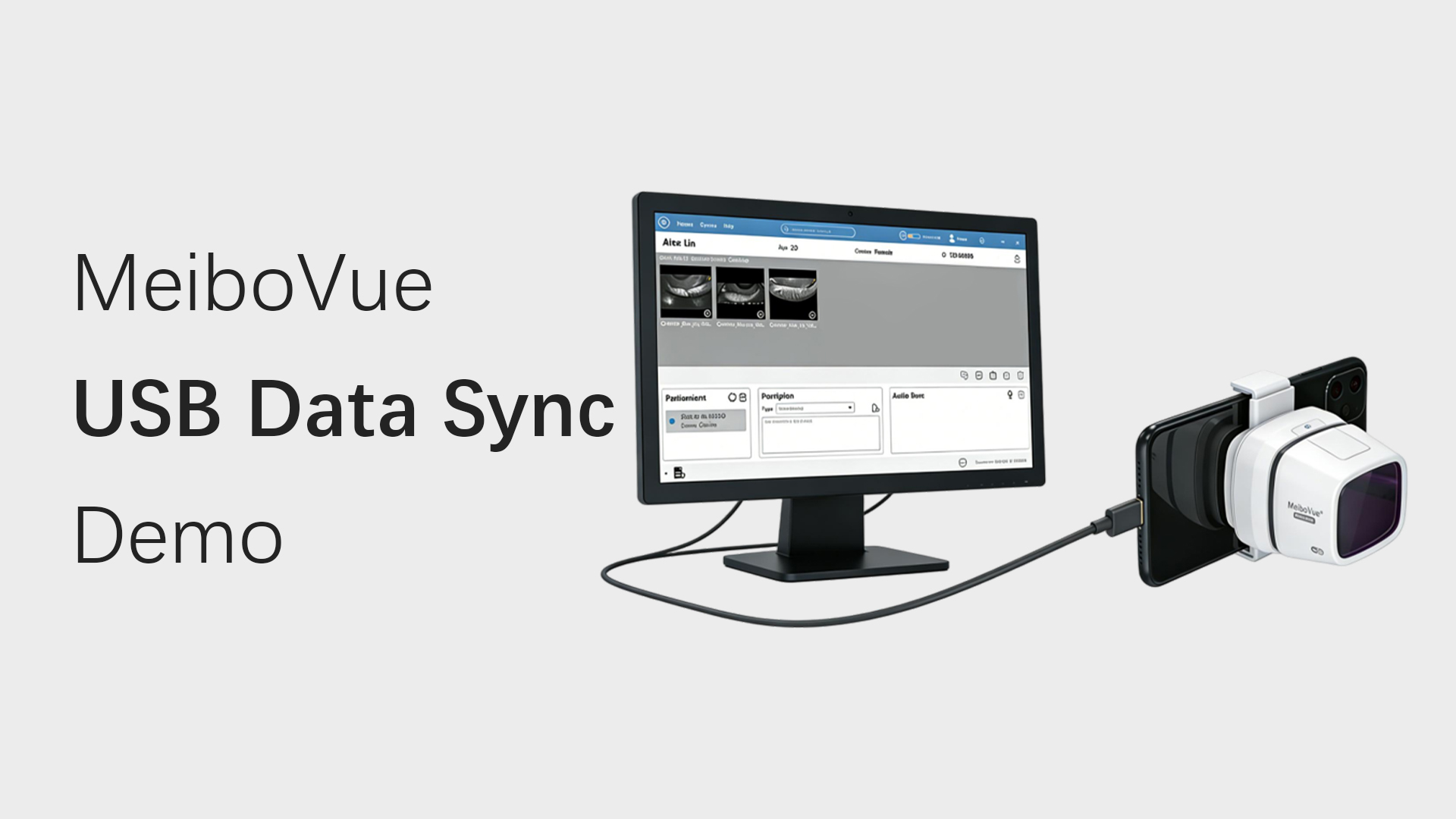
Efficient image transfer is essential for smooth clinical workflow in dry eye practices. In this guide, we will walk you through how to sync data between MeiboVue, Android phone, and PC using a USB connection.
1.Before You Start
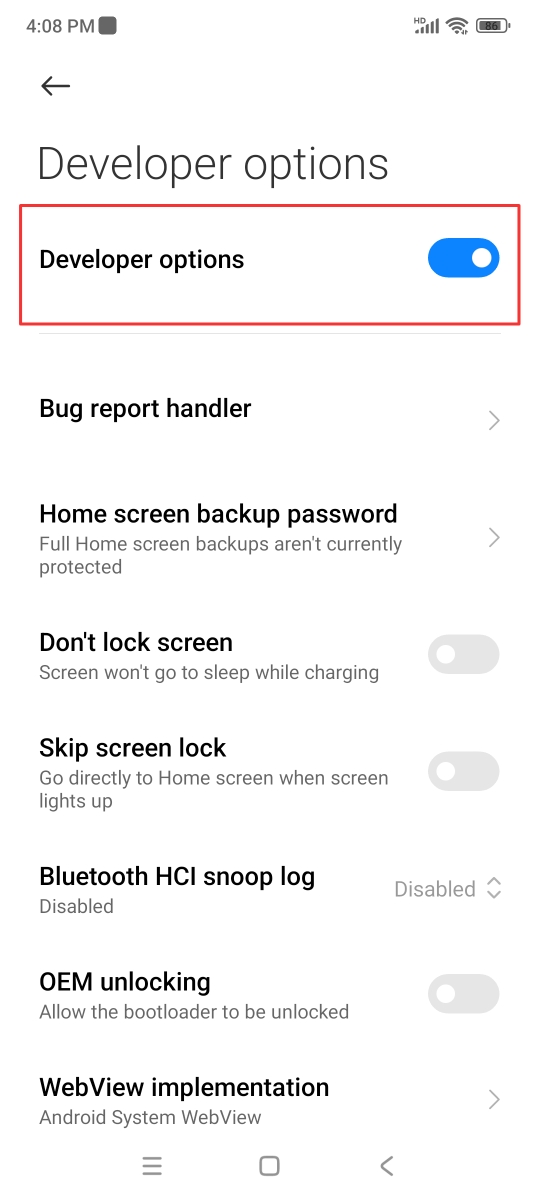
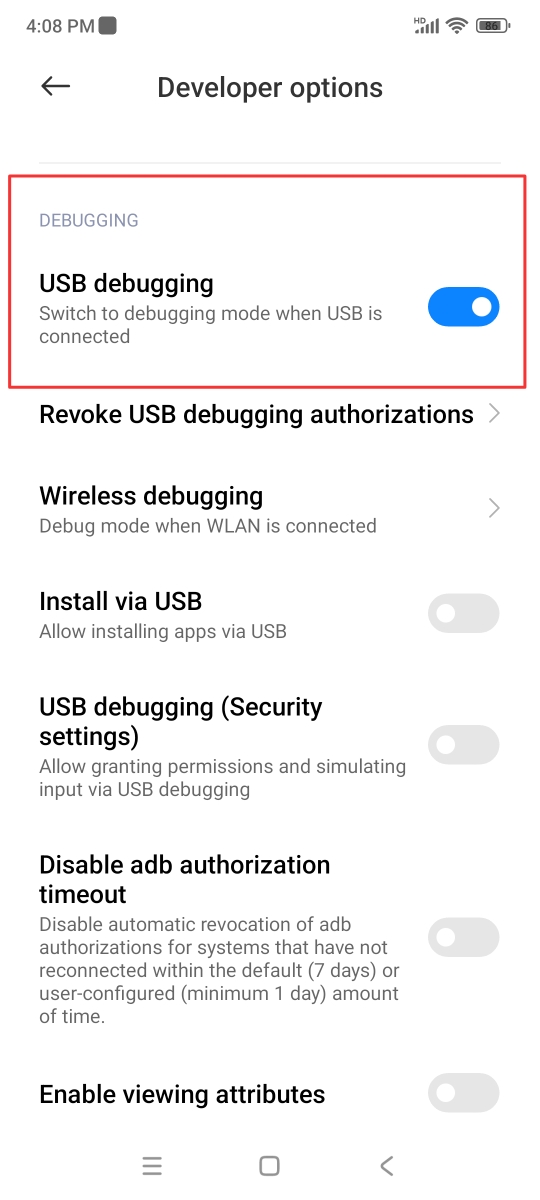
- Enable Developer Modeand USB debugging on your Android phone
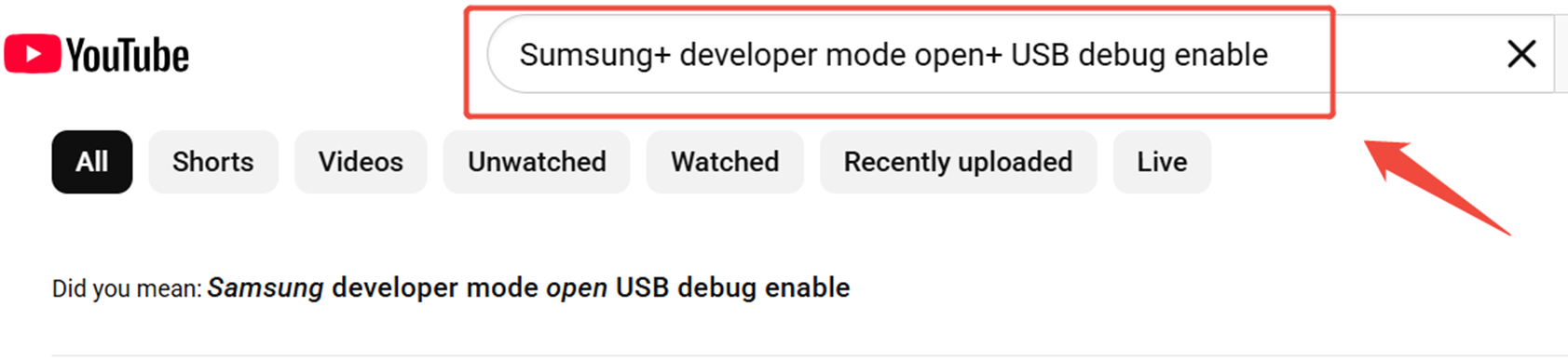
- Search ”phone model+ developer mode open+ USB debug enable“ on Youtube for guide
- Use a USB cable that supports file transfer
 |
 |
2.Setup & Connection
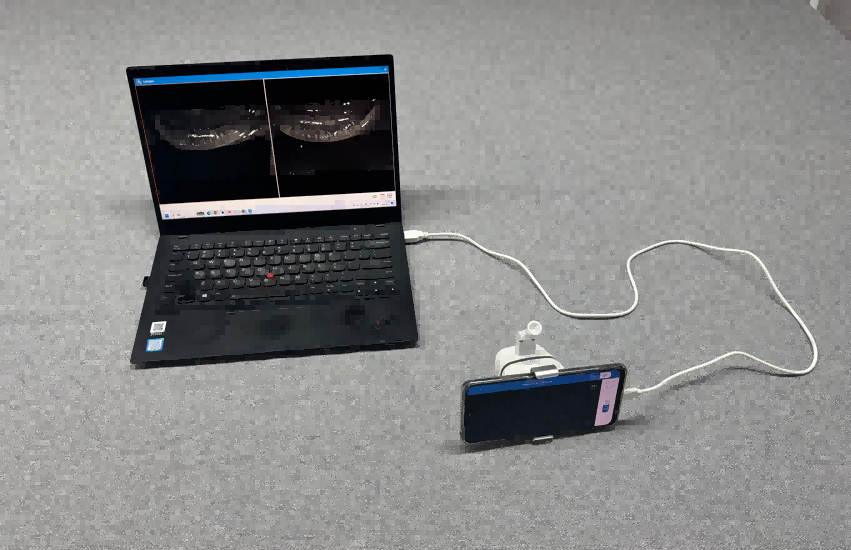
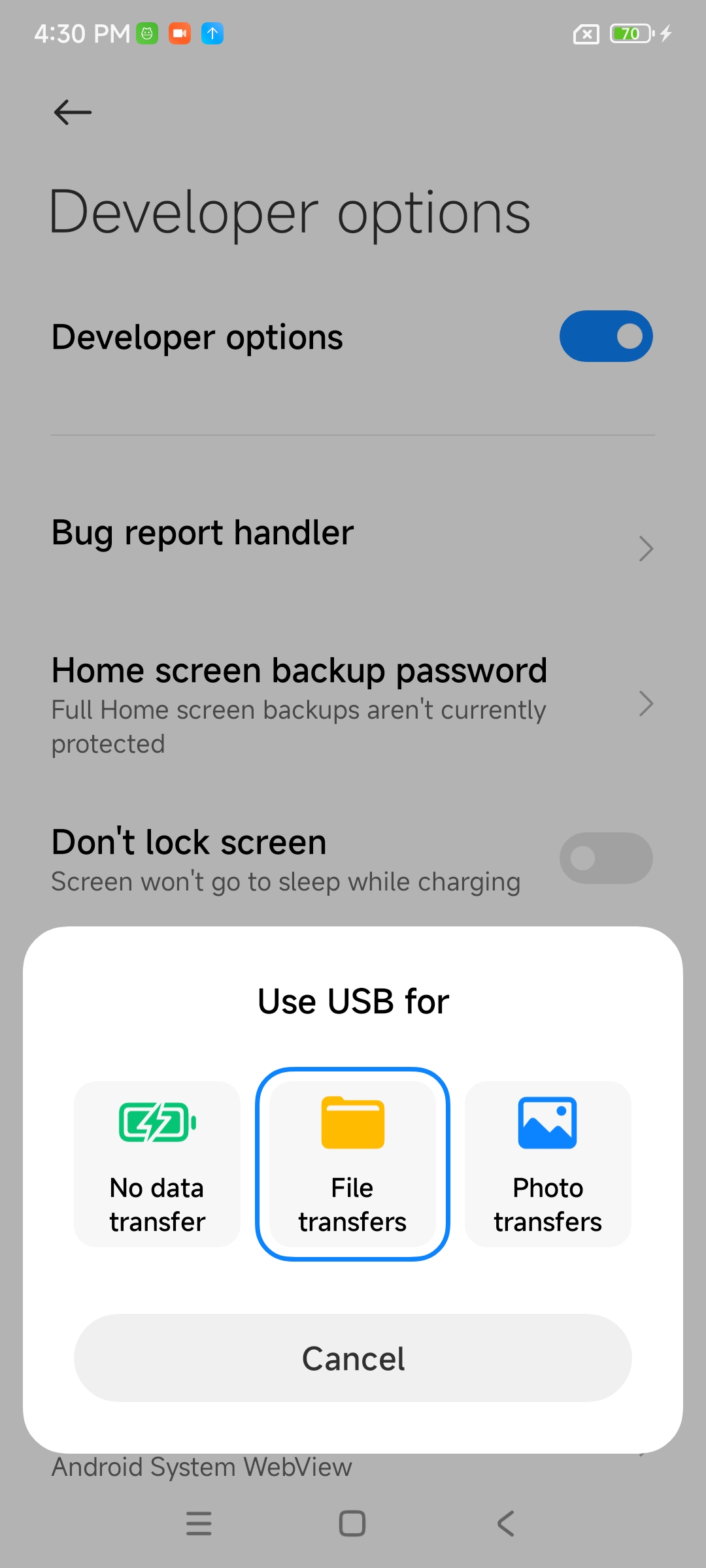
- Connect your phone to the PC via USB and select“File Transfer”
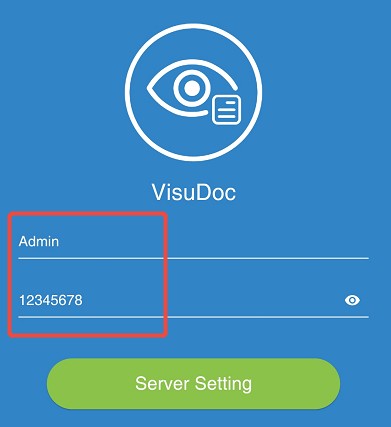
- Open the app → go to Server Setting
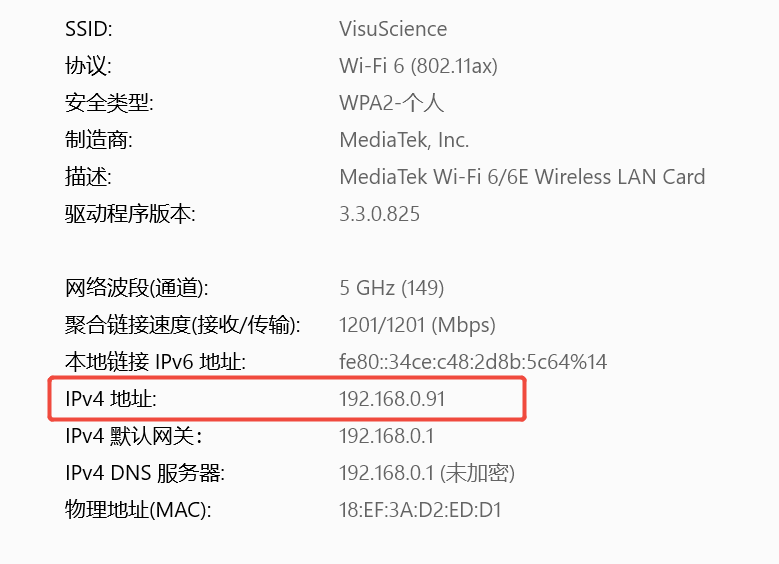
- Enter your PC’s IPv4 addressand set port to1234
- Tap Connect and log in:
- Username:Admin
- Password:12345678
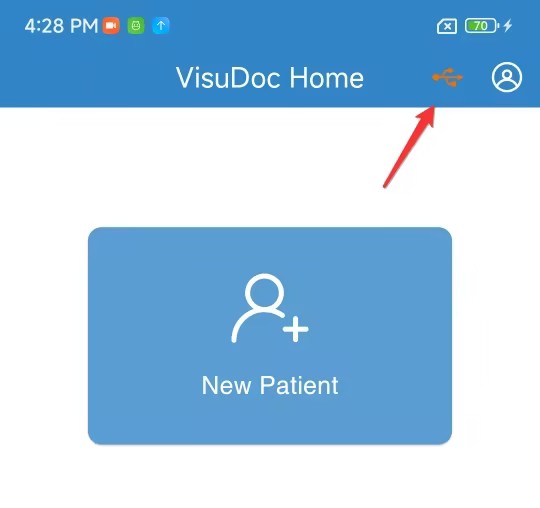
5.When the USB icon turns orange, sync mode is active
 |
 |
 |
 |
3.Connect to MeiboVue
- Turn on the device
- Connect your phone to Wi-Fi:VMC100XXX
- Password: VMC1001234
4.Capture & Sync
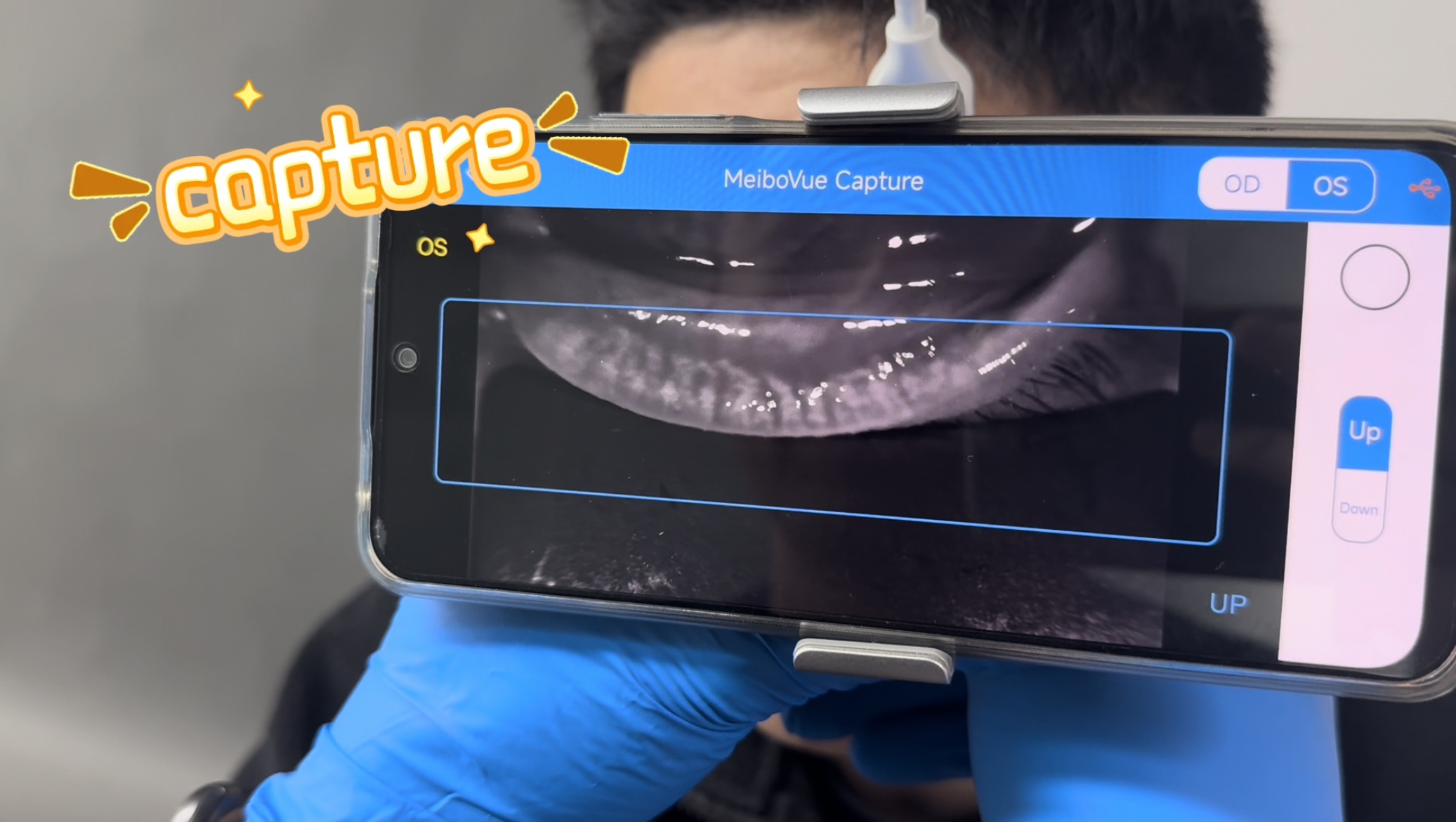
- Create a patient and start an exam
- Use voice control to capture images
- Images sync automatically to your PC(If needed, click Refresh)
5.Review & Patient Education
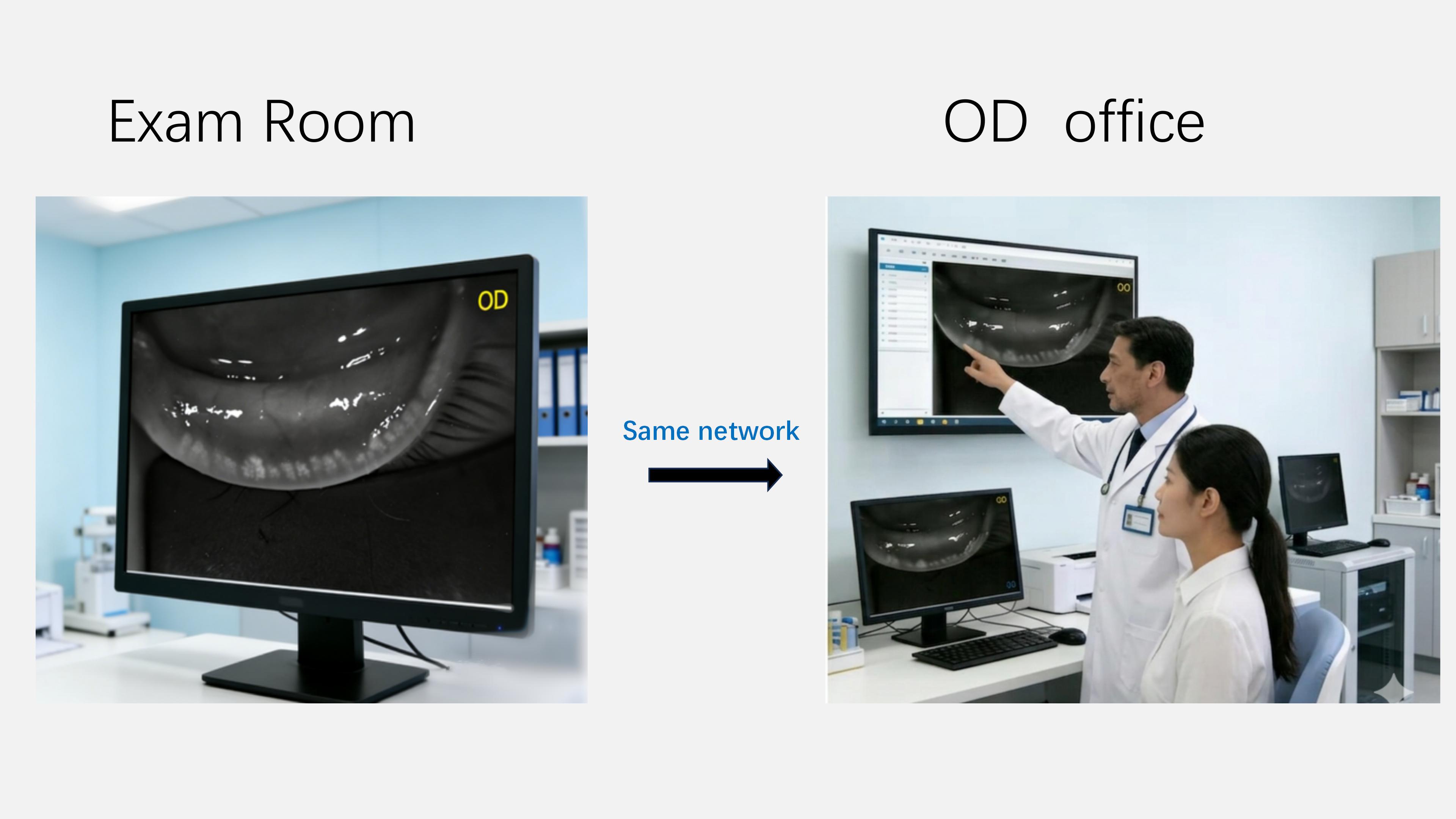
Doctors can review and explain results with patients in real time for clearer understanding and more effective patient education.
Summary
With voice-controlled capture and instant USB transfer, MeiboVue helps streamline workflow and enhance patient communication.
Efficient image transfer is essential for smooth clinical workflow in dry eye practices. In this guide, we will walk you through how to sync data between MeiboVue, Android phone, and PC using a USB connection.
1.Before You Start
- Enable Developer Mode and USB debugging on your Android phone
- Search ”phone model+ developer mode open+ USB debug enable“ on Youtube for guide
- Use a USB cable that supports file transfer
|
|
2. Setup & Connection
- Connect your phone to the PC via USB and select“File Transfer”
- Open the app → go to Server Setting
- Enter your PC’s IPv4 addressand set port to1234
- Tap Connect and log in:
- Username:Admin
- Password:12345678
5. When the USB icon turns orange, sync mode is active.
|
|
|
|
3.Connect to MeiboVue
- Turn on the device
- Connect your phone to Wi-Fi:VMC100XXX
- Password: VMC1001234
4.Capture & Sync
- Create a patient and start an exam
- Use voice control to capture images
- Images sync automatically to your PC(If needed, click Refresh)
5.Review & Patient Education
Doctors can review and explain results with patients in real time for clearer understanding and more effective patient education.
Summary
With voice-controlled capture and instant USB transfer, MeiboVue helps streamline workflow and enhance patient communication.