




How to do MGD screening with a phone
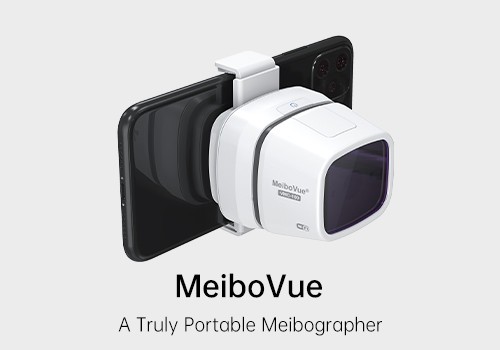
MeiboVue is a smartphone meibographer that works with all kinds of smartphone to capture high quality meibomian gland images.
Step 1
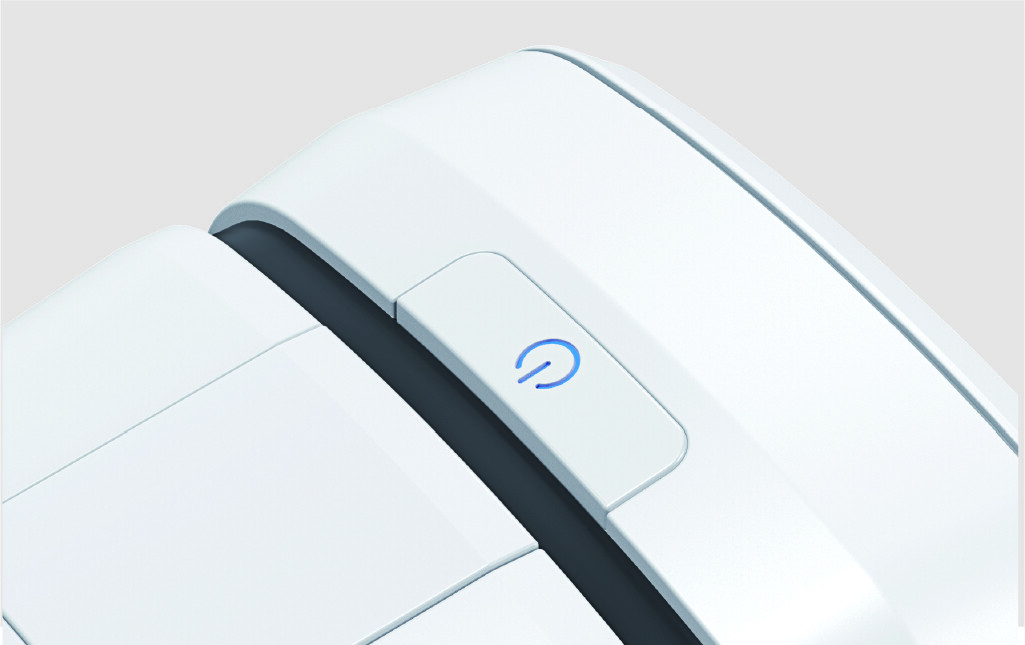
Long press the switch button to turn on the device. The blue light will be on indicating working mode.

Step 2
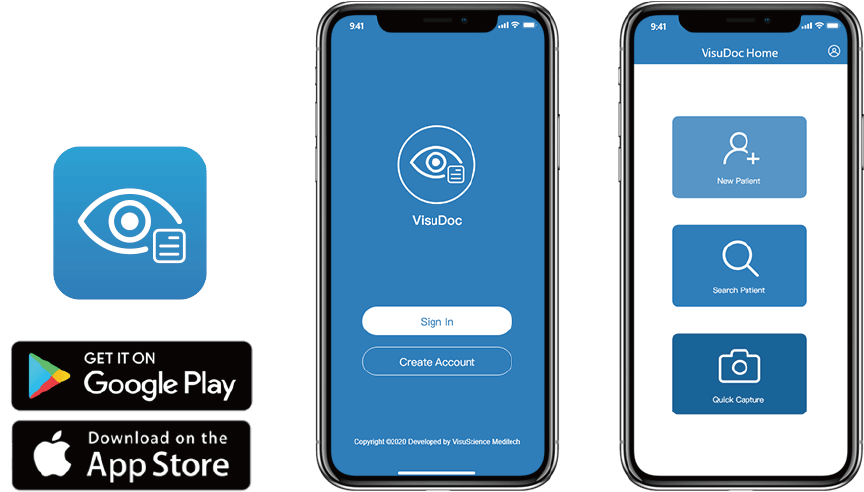
Download and install VisuDoc application from Google play store or Apple App store.

Step 3
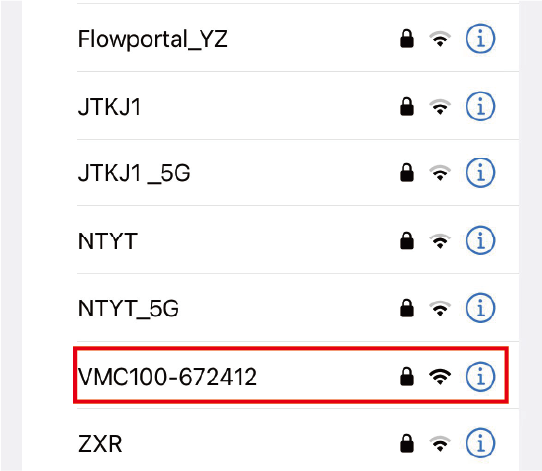
Open smartphone Wi-Fi list and search VMC-100 spot.

Step 4
Connect VMC-100 Wi-Fi spot with password.
Step 5
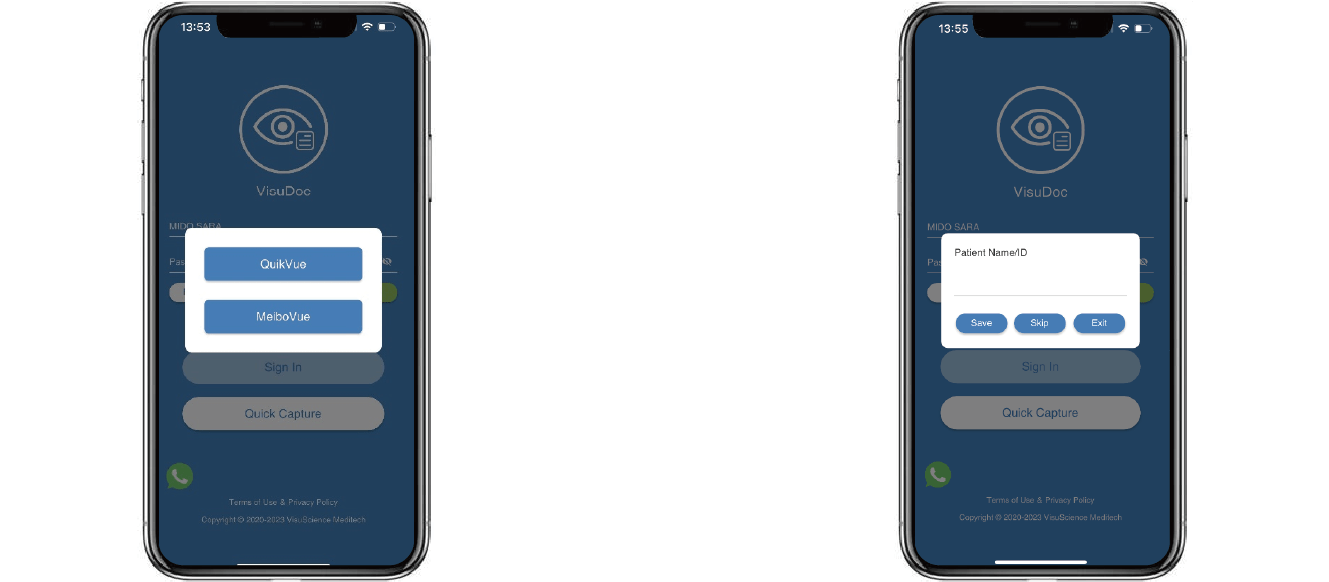
Open VisuDoc app, tap ‘Quick Capture’ and select MeiboVue. Input Patient info and tap ‘save’ or tap ‘skip’ to start capture.

Step 6
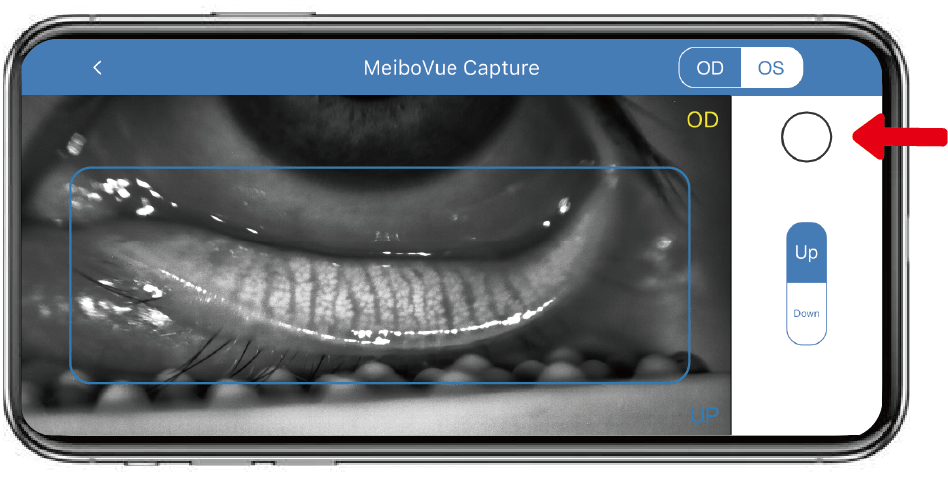
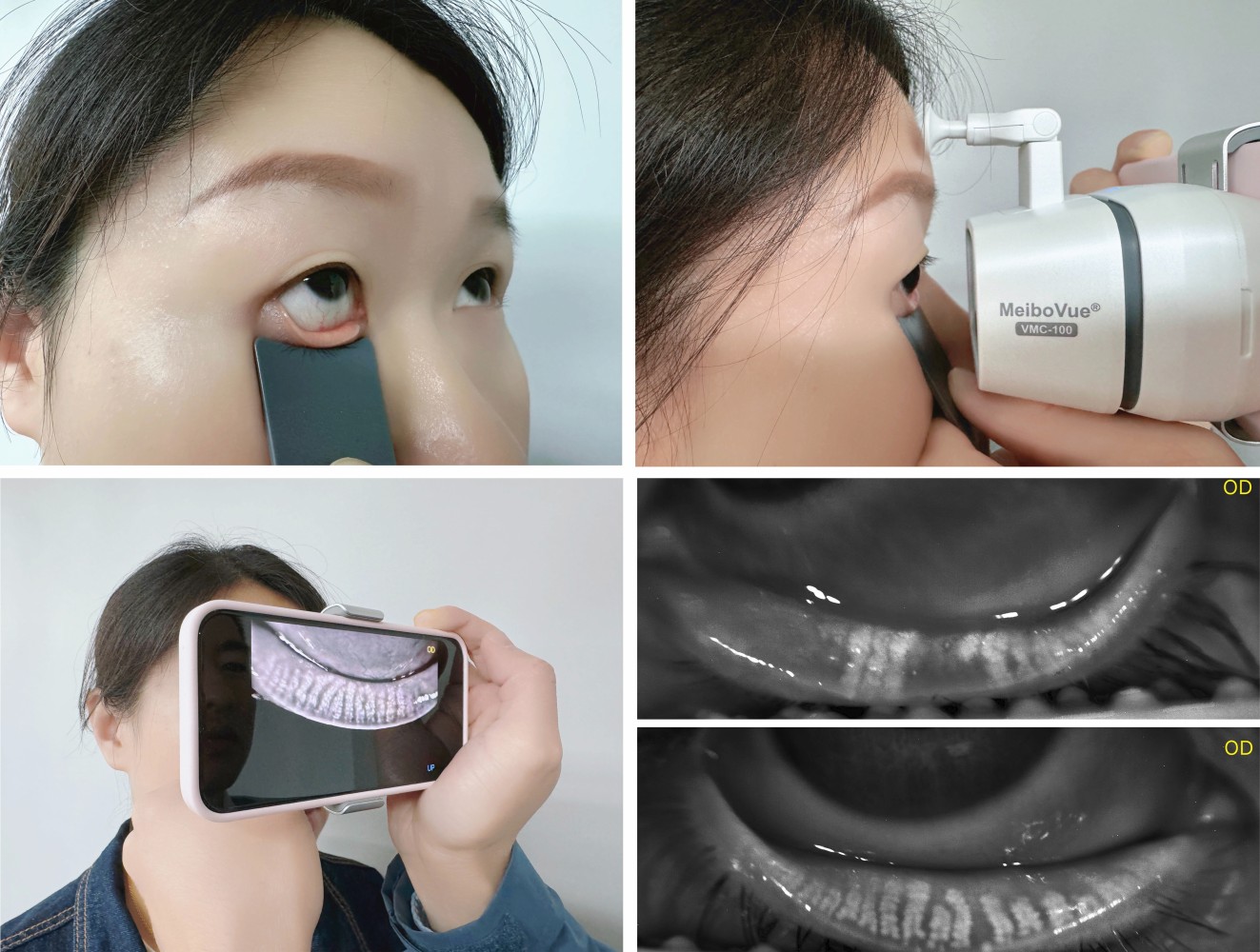
Select OS/OD, UP/DOWN for the eye lid to be imaged. Focus meibomian gland in the blue rectangular and tap the round button to capture when image is in focus.

Tips:
Use a VisuScience eyelid everter LidVue to evert eyelid properly for easy imaging. Put one hand onto the other hand to stabilize the camera.

Step 8
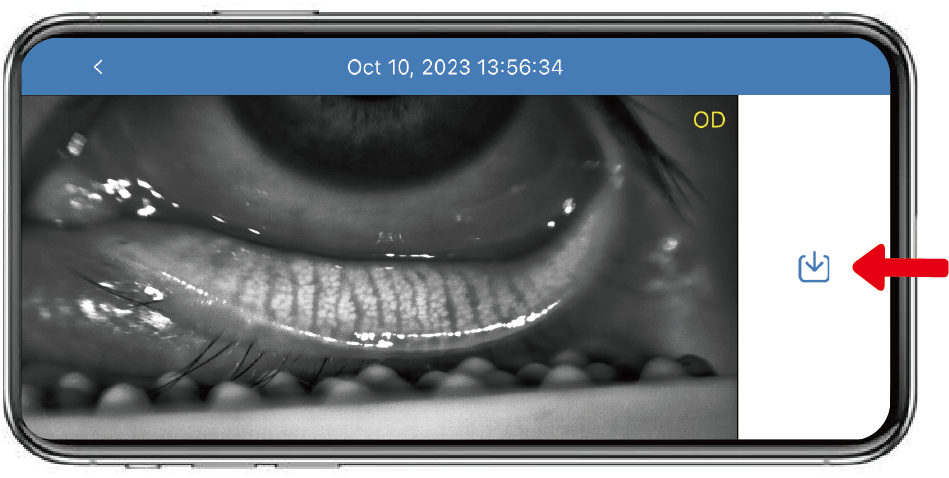
Tap download icon to save image into phone album.

Step 9
Use a cable to connect phone with PC to transfer all images to PC. User can upload images to EMR/EHR from PC.


MeiboVue is a smartphone meibographer that works with all kinds of smartphone to capture high quality meibomian gland images.
Step 1
Long press the switch button to turn on the device. The blue light will be on indicating working mode.
Step 2
Download and install VisuDoc application from Google play store or Apple App store.
Step 3
Open smartphone Wi-Fi list and search VMC-100 spot.
Step 4
Connect VMC-100 Wi-Fi spot with password.
Step 5
Open VisuDoc app, tap ‘Quick Capture’ and select MeiboVue. Input Patient info and tap ‘save’ or tap ‘skip’ to start capture.
Step 6
Select OS/OD, UP/DOWN for the eye lid to be imaged. Focus meibomian gland in the blue rectangular and tap the round button to capture when image is in focus.
Tips:
Use a VisuScience eyelid everter LidVue to evert eyelid properly for easy imaging. Put one hand onto the other hand to stabilize the camera.
Step 8
Tap download icon to save image into phone album.
Step 9
Use a cable to connect phone with PC to transfer all images to PC. User can upload images to EMR/EHR from PC.