




MeiboVue Now Supports USB Cable Sync to VisuDoc
A More Stable Way to Transfer Images and Data
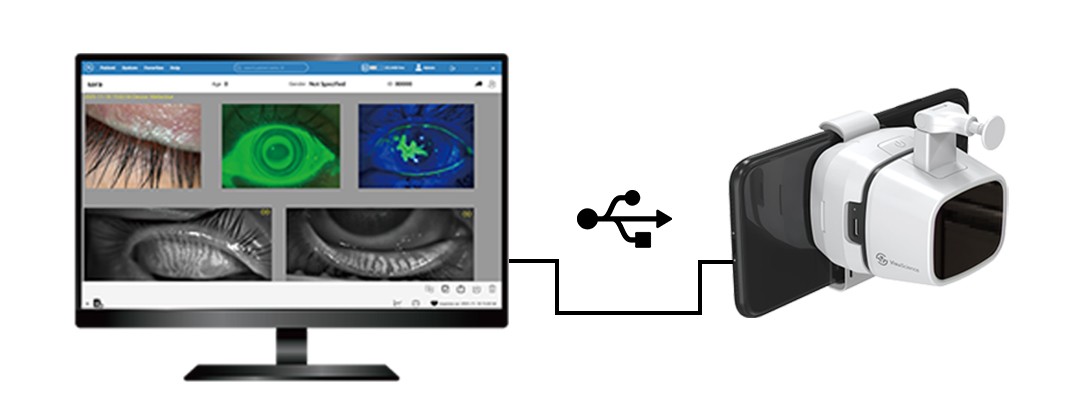
MeiboVue now supports direct image and data synchronization to PC via USB cable through VisuDoc (v2.0.2.3 or later).
This workflow provides a more stable alternative to wireless transfer and is especially suitable for clinics with limited or unstable Wi-Fi environments.
USB cable sync is currently supported on Android smartphones only.
Why USB Sync?
USB cable sync helps ensure reliable daily workflows by reducing dependence on network quality.
It is well suited for:
Clinics with limited network infrastructure
Practices experiencing frequent Wi-Fi interruptions
Quick Setup Overview
To enable USB cable sync, follow the steps below:
1. Enable Developer Mode on the Android phone
2. Power on MeiboVue and connect the Android phone to the device’s Wi-Fi network.
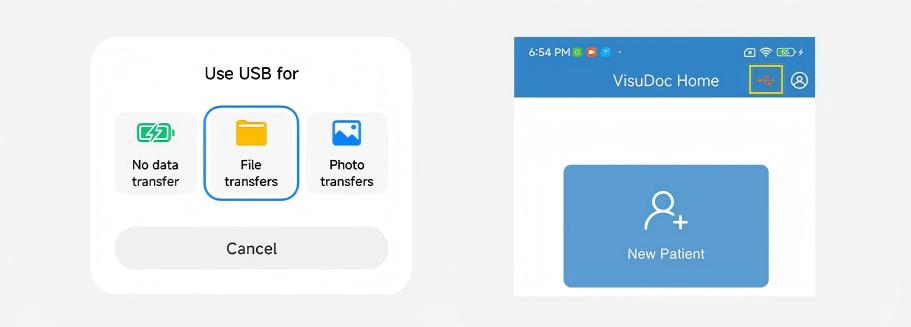
3. Use a data-enabled USB cable and select “File Transfer” on the phone. When the USB icon turns orange, cable sync mode is activated.
4. Log in to your VisuDoc account on the Android phone and enable Sync. Images and data will then synchronize directly to VisuDoc on the PC.
For a more detailed MeiboVue USB Sync Setup Guide, please contact: info@visuscience.com
A More Stable Way to Transfer Images and Data
MeiboVue now supports direct image and data synchronization to PC via USB cable through VisuDoc (v2.0.2.3 or later).
This workflow provides a more stable alternative to wireless transfer and is especially suitable for clinics with limited or unstable Wi-Fi environments.
USB cable sync is currently supported on Android smartphones only.
Why USB Sync?
USB cable sync helps ensure reliable daily workflows by reducing dependence on network quality.
It is well suited for:
Clinics with limited network infrastructure
Practices experiencing frequent Wi-Fi interruptions
Quick Setup Overview
To enable USB cable sync, follow the steps below:
1. Enable Developer Mode on the Android phone
2. Power on MeiboVue and connect the Android phone to the device’s Wi-Fi network.
3. Use a data-enabled USB cable and select “File Transfer” on the phone. When the USB icon turns orange, cable sync mode is activated.
4. Log in to your VisuDoc account on the Android phone and enable Sync. Images and data will then synchronize directly to VisuDoc on the PC.
For a more detailed MeiboVue USB Sync Setup Guide, please contact: info@visuscience.com